Komplete Kontrol Manual: A Comprehensive Guide
This manual details Native Instruments’ Komplete Kontrol, covering installation, software setup, DAW integration, and advanced techniques for optimal performance.
Welcome to the world of Komplete Kontrol! This section introduces the core concepts behind Native Instruments’ powerful keyboard controllers and associated software. Komplete Kontrol seamlessly bridges the gap between your virtual instruments and hands-on control, offering an intuitive workflow for music production.
Whether you’re a seasoned producer or just starting, Komplete Kontrol aims to simplify sound design and performance. It’s designed to work flawlessly with Native Instruments’ KOMPLETE suite, but also extends compatibility to numerous third-party plugins adhering to the Native Kontrol Standard (NKS). This guide will equip you with the knowledge to unlock its full potential, from initial setup to advanced customization.
What is Native Instruments Komplete Kontrol?
Komplete Kontrol is more than just a keyboard; it’s a comprehensive software and hardware ecosystem designed by Native Instruments. It centers around a dedicated software instrument browser, providing streamlined access to your entire KOMPLETE library and NKS-compatible plugins. The system intelligently maps parameters, allowing for intuitive control over sounds directly from the keyboard’s controls.
Essentially, Komplete Kontrol transforms your computer into a powerful, tactile sound design workstation. It offers deep integration with popular DAWs, enhancing workflow and creative expression; It’s a central hub for all your virtual instruments, simplifying browsing, tweaking, and performing with your sounds.
Komplete Kontrol Hardware Overview
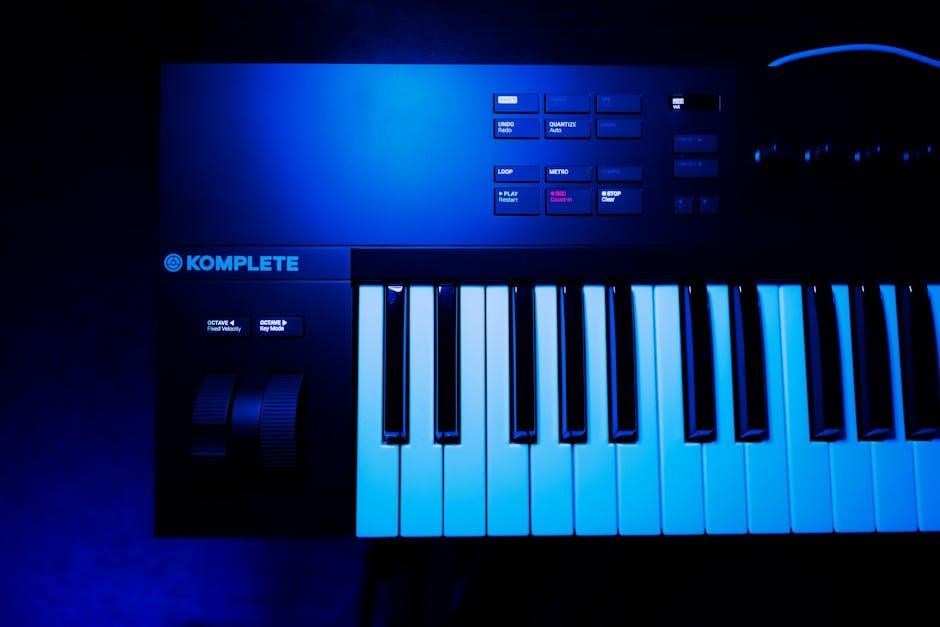
Komplete Kontrol hardware consists of a series of dedicated MIDI keyboards, available in various key sizes and configurations. These keyboards are specifically engineered to work seamlessly with the Komplete Kontrol software. They feature a high-quality keybed, responsive aftertouch, and an array of customizable controls, including knobs, faders, and buttons.
A defining feature is the integrated Light Guide, which visually displays parameter assignments and scales directly on the keys. USB connectivity ensures easy integration with your computer, and the robust build quality guarantees long-lasting performance. The hardware is designed to be a central control surface for your virtual instruments.
Key Features of Komplete Kontrol Keyboards
Komplete Kontrol keyboards boast several key features enhancing workflow and creativity. These include a high-resolution Light Guide visually representing sounds and controls, dynamic keybeds with aftertouch for expressive playing, and dedicated Sound Select and Browser knobs for quick access to presets.
Deep integration with Native Instruments software, plus support for the NKS standard, allows seamless control of third-party plugins. Customizable controls, including knobs, faders, and buttons, offer hands-on manipulation of parameters. USB connectivity provides power and data transfer, ensuring a streamlined setup.
Understanding the Light Guide
The Light Guide is a central feature of Komplete Kontrol keyboards, visually communicating instrument parameters and functions directly on the keys. Each key illuminates to indicate notes, scales, chords, and zones, providing intuitive guidance during performance and sound design.
It dynamically adapts to different modes, such as Scale Mode and Chord Mode, simplifying complex musical ideas. The Light Guide also displays feedback from plugin parameters, offering visual confirmation of adjustments. Customization options allow users to tailor the Light Guide’s behavior to their preferences, enhancing workflow and creative expression.
Software Installation and Setup
Proper software installation is crucial for Komplete Kontrol functionality. Begin by downloading the Komplete Kontrol software from the Native Instruments website, ensuring compatibility with your operating system. The Native Access application manages installation and updates for all Native Instruments products, streamlining the process.
Follow the on-screen instructions during installation, accepting license agreements and selecting the desired installation path. After installation, launch Native Access to activate your Komplete Kontrol software and download any necessary updates. This ensures optimal performance and compatibility with your system and other plugins.
Installing Komplete Kontrol Software
The installation process begins with downloading the Komplete Kontrol software via Native Access. This central hub manages all Native Instruments products, simplifying updates and installations. Ensure you have a stable internet connection throughout the download. Once downloaded, launch the installer and follow the on-screen prompts.
Accept the license agreement and choose your preferred installation directory. Native Access will handle the rest, verifying your product license and installing all necessary components. Post-installation, launch Native Access again to complete the activation process and download any available updates, guaranteeing seamless operation.
Driver Installation and Troubleshooting
Proper driver installation is crucial for Komplete Kontrol functionality. Native Instruments automatically installs the necessary drivers during software setup via Native Access. However, manual driver installation might be needed for older systems or specific configurations. Download the latest drivers from the Native Instruments website, ensuring compatibility with your operating system.
Troubleshooting connectivity issues? First, verify the USB connection. Try a different port or cable. If problems persist, check Device Manager for driver errors. Reinstalling the drivers often resolves conflicts. Consult the Native Instruments support website for detailed troubleshooting guides and FAQs addressing common driver-related problems.
Navigating the Komplete Kontrol Interface
The Komplete Kontrol interface is designed for intuitive sound exploration. The central Browser allows easy access to your Komplete library and NKS-compatible plugins. Utilize the category filters and search function to quickly locate desired sounds. The interface dynamically adapts based on the selected instrument, displaying relevant parameters and controls.
Mastering the interface unlocks its full potential. Familiarize yourself with the various sections, including the parameter view, scale/chord modes, and arpeggiator. Understanding these elements streamlines workflow and enhances creative expression. The visual feedback provided by the Light Guide further simplifies navigation.
Browser Functionality and NKS Standard
The Komplete Kontrol browser is the core of sound selection. It categorizes instruments and presets from Komplete and NKS (Native Kontrol Standard) compatible plugins. NKS ensures consistent parameter mapping and integration, providing a unified browsing experience. Filter by instrument type, tags, or manufacturer to refine your search.
The NKS standard is crucial for seamless integration. Plugins adhering to NKS display detailed information within the browser, including previews and advanced parameter control. This standardization streamlines workflow, allowing you to focus on creativity rather than technical setup. Explore the NKS ecosystem for expanded sonic possibilities.
Preset Management and Organization

Komplete Kontrol offers robust preset management tools. Users can create custom categories and tags to organize their sound library effectively. Favoriting presets provides quick access to frequently used sounds, streamlining workflow during performance or production. The browser allows for efficient searching and filtering based on these user-defined criteria.
Importing and exporting presets is also supported. This facilitates sharing sounds with other users or backing up your custom library. Regularly organizing presets ensures a clutter-free experience, maximizing creative potential and minimizing time spent searching for the perfect sound within Komplete and NKS instruments.
Deep Dive into Key Features
Komplete Kontrol’s core functionality centers around its advanced features. Scale mode allows playing within defined scales, eliminating dissonant notes and fostering melodic creativity. Chord mode simplifies chord progressions, offering various voicings with a single key press. These modes are customizable, adapting to individual musical styles and preferences.
The integrated Arpeggiator and Beat Machine provide rhythmic inspiration. Users can create complex arpeggios and drum patterns with intuitive controls. These features seamlessly integrate with Komplete instruments, offering a dynamic and expressive performance experience, enhancing both live performance and studio production.
Scale and Chord Modes
Scale Mode revolutionizes melodic creation, restricting notes to a chosen scale, preventing accidental dissonances and inspiring harmonic exploration. Users can select from numerous scales, including major, minor, chromatic, and custom scales, tailoring the experience to their musical vision. This feature is invaluable for both beginners and experienced musicians.
Chord Mode simplifies harmonic complexity, allowing users to trigger full chords with single keys. Various chord voicings and inversions are available, offering rich harmonic textures. Customizable chord types and progressions further enhance creative control, streamlining composition and performance workflows.
Arpeggiator and Beat Machine
The integrated Arpeggiator transforms sustained notes into dynamic rhythmic patterns, offering extensive customization options. Users can adjust parameters like rate, octave, pattern, and swing to create intricate arpeggios. Synchronization with the DAW ensures seamless integration with existing projects, enhancing rhythmic possibilities.
Beat Machine mode unlocks percussive creativity, allowing users to trigger drum samples and loops directly from the keyboard. Assigning samples to keys and manipulating parameters like pitch and filter creates unique beats and grooves. This feature expands the Komplete Kontrol’s versatility beyond melodic instruments.
Integration with DAWs
Komplete Kontrol seamlessly integrates with major Digital Audio Workstations (DAWs), streamlining workflow and enhancing creative control. The NKS standard ensures consistent mapping and parameter control across various plugins within the DAW environment. This integration allows for intuitive browsing and manipulation of sounds directly from the keyboard.
Specific integrations exist for Ableton Live and Logic Pro X, offering dedicated control surfaces and enhanced functionality. Beyond these, Komplete Kontrol functions effectively with other DAWs via MIDI mapping, providing a unified experience for music production.
Komplete Kontrol in Ableton Live
Within Ableton Live, Komplete Kontrol unlocks deep integration, offering dedicated control over instruments and effects. The Light Guide visually represents parameters, providing immediate feedback during performance and sound design. Seamless browsing of Komplete libraries and NKS-compatible plugins is achieved directly from the keyboard.
Automatic mapping of controls simplifies workflow, allowing users to focus on creativity rather than technical setup. Komplete Kontrol’s scale and chord modes integrate flawlessly with Ableton’s clip launching and arrangement views, enhancing musical exploration and production efficiency.
Komplete Kontrol in Logic Pro X
Komplete Kontrol’s integration with Logic Pro X streamlines workflow, offering enhanced control over software instruments and effects. The Light Guide dynamically reflects parameter adjustments within Logic, providing visual feedback for intuitive sound shaping. NKS-compatible plugins are easily browsed and loaded directly from the keyboard.

Automatic mapping of controls minimizes setup time, allowing musicians to concentrate on composing and performing. Scale and chord modes work seamlessly within Logic’s environment, inspiring creative exploration and simplifying complex harmonic ideas. This integration boosts productivity and musical expression.
Komplete Kontrol with Other DAWs
Beyond Logic and Ableton, Komplete Kontrol offers broad DAW compatibility, functioning as a powerful MIDI controller. While deep integration features vary, the NKS standard ensures consistent browsing and preset loading across supported platforms. Manual MIDI mapping allows customization for any DAW, unlocking comprehensive control over virtual instruments and effects.
Users can leverage Komplete Kontrol’s scale and chord modes within their preferred digital audio workstation, enhancing creative possibilities. The Light Guide provides visual feedback for parameter adjustments, even without native DAW integration. This versatility makes Komplete Kontrol a central hub for music production.
Advanced Techniques
Mastering Komplete Kontrol unlocks deeper creative potential. Explore utilizing it seamlessly with third-party plugins supporting MIDI Learn, expanding your sound palette beyond Native Instruments’ offerings. Precise MIDI controller mapping is crucial; customize assignments for nuanced control over plugin parameters, tailoring the experience to your workflow.
Experiment with advanced Light Guide configurations for visual feedback on custom mappings. Dive into complex automation possibilities, leveraging Komplete Kontrol’s tactile controls for dynamic performances. These techniques transform Komplete Kontrol from a controller into a personalized production powerhouse.
Using Komplete Kontrol with Third-Party Plugins
Expand Komplete Kontrol’s capabilities by integrating third-party plugins. While optimized for Native Instruments’ instruments, many plugins respond effectively via MIDI Learn. This allows mapping of Komplete Kontrol’s knobs, faders, and keys to control plugin parameters directly.
Ensure the plugin supports MIDI control for seamless integration. Utilize the Light Guide to visually represent mapped parameters, enhancing workflow. Some plugins may require specific configuration within their settings to recognize Komplete Kontrol as a MIDI controller. Experiment to unlock the full potential of your existing plugin library.
Mapping MIDI Controllers
Customize Komplete Kontrol’s functionality by mapping external MIDI controllers. This allows extending control beyond the keyboard itself, integrating hardware synths, drum pads, or other MIDI devices. Access the MIDI Learn mode within Komplete Kontrol’s settings to assign specific controller signals to parameters.
Carefully consider your workflow when assigning controls. Utilize the Light Guide to visually confirm mappings. Remember to save custom mappings as presets for easy recall. This feature unlocks a personalized experience, tailoring Komplete Kontrol to your unique production style and hardware setup.
Troubleshooting Common Issues

Encountering problems? This section addresses frequent issues. Connectivity problems often stem from faulty USB cables or driver conflicts; ensure a secure connection and updated drivers. Software conflicts can arise with other audio interfaces or MIDI devices – try disabling them temporarily.
If Komplete Kontrol isn’t recognized, restart your computer and the software. Check Native Instruments’ support website for known bugs and solutions. Regularly updating both the software and drivers is crucial for stability. Detailed troubleshooting steps and FAQs are available online to resolve most common problems.
Connectivity Problems
Experiencing connection issues? Begin by verifying the USB cable is securely connected to both your Komplete Kontrol keyboard and computer. Try a different USB port, preferably a USB 2.0 port directly on your computer, avoiding hubs. Ensure the correct Komplete Kontrol driver is installed and up-to-date.
If the keyboard isn’t detected, check Device Manager (Windows) or System Information (macOS). A faulty cable is a common culprit. Restarting your computer and the Komplete Kontrol software can often resolve temporary glitches. Consult the Native Instruments support website for specific error codes.
Software Conflicts
Conflicts with other software can sometimes hinder Komplete Kontrol’s performance. Antivirus programs or firewalls might interfere with communication. Temporarily disable them to test if they’re the cause, then add exceptions for Native Instruments applications.
Other MIDI software or virtual instruments could also create conflicts. Close unnecessary programs before launching Komplete Kontrol. Ensure your DAW recognizes Komplete Kontrol as a MIDI input device. Regularly updating both your operating system and Komplete Kontrol software helps minimize compatibility issues. Check the NI forums for known conflicts.
Resources and Support
Native Instruments provides extensive support for Komplete Kontrol users. The Native Instruments Support Website offers a comprehensive knowledge base, FAQs, and troubleshooting guides. You can submit support requests directly through the website for personalized assistance.
Komplete Kontrol Community Forums are a valuable resource for connecting with other users, sharing tips, and finding solutions to common problems. These forums are actively monitored by Native Instruments staff. Additionally, POP-MUSIC offers downloadable instructions in PDF format. Explore these resources to maximize your Komplete Kontrol experience.
Native Instruments Support Website
The official Native Instruments Support Website is the primary hub for Komplete Kontrol assistance. It features a detailed knowledge base filled with articles addressing common issues, installation problems, and software conflicts. Users can find FAQs, troubleshooting guides, and downloadable resources like updated drivers.
Direct support requests can be submitted through the website’s contact form, allowing for personalized assistance from NI’s support team. The site also provides access to product documentation and tutorials, ensuring users have everything needed for a smooth experience. It’s a crucial starting point for resolving any Komplete Kontrol related concerns.
Komplete Kontrol Community Forums
The Native Instruments Komplete Kontrol Community Forums offer a vibrant platform for users to connect, share knowledge, and seek assistance. These forums are populated by experienced users and NI staff, providing a collaborative environment for troubleshooting and discovering new techniques.
Users can find solutions to common problems, discuss advanced workflows, and exchange tips on integrating Komplete Kontrol with various DAWs. The forums are searchable, allowing quick access to relevant discussions. Posting questions and participating in existing threads fosters a supportive community, enhancing the overall Komplete Kontrol experience.